Visual canvas
Connect triggers, actions, conditions and waits on a visual canvas. Follow the lines to read the path a contact will take, and open a step to edit its settings beside the flow.
MODULE 05 / AUTOMATE
Connect triggers, branches, waits and actions in a visual builder. Tag a new lead, score the answers, create an opportunity and send the next message from the same flow. Workflow automation is included in RevGrow, and each client account runs it under your brand.
Join the waitlist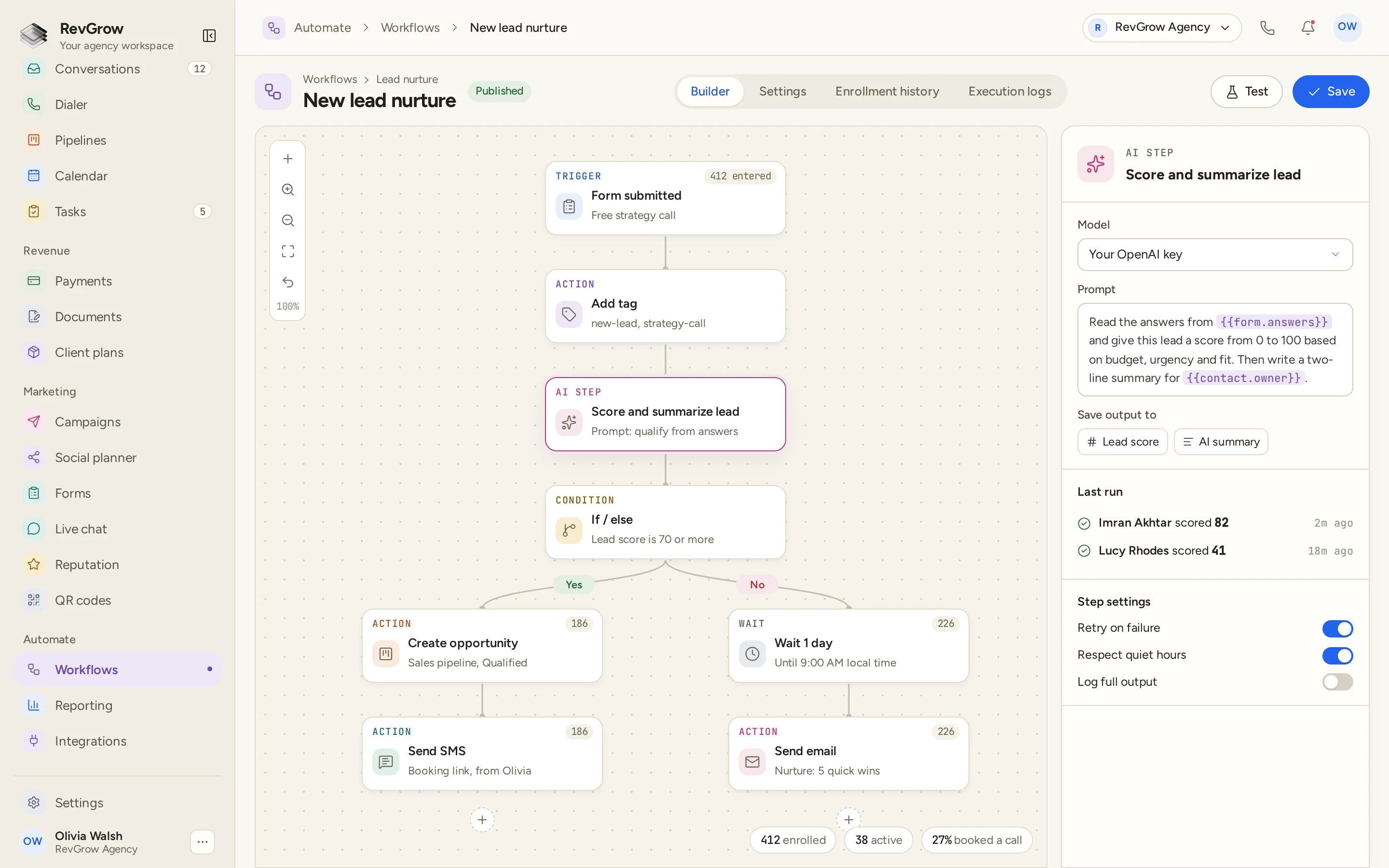
WHAT IT DOES
Connect triggers, actions, conditions and waits on a visual canvas. Follow the lines to read the path a contact will take, and open a step to edit its settings beside the flow.
Add a prompt inside the workflow using your own connected AI key. The sample reads form answers, scores the lead and writes a short summary, with the output saved to the lead score and AI summary fields.
Choose from 80 actions and 76 triggers to build the process around the events your team works with. A submitted form can start a flow that tags the contact, scores the lead, creates an opportunity and sends the next message.
Add custom nodes when the built-in steps need to fit a process of your own. Keep that work inside the same workflow, alongside the triggers, branches and actions the team already uses.
Bring an event into RevGrow with an incoming webhook, or send a request out to another tool from a workflow step. Logs keep the webhook activity available to review when a connection needs attention.
Send contacts down different paths with conditions or A/B splits, and place waits between actions. In the sample, the lead score decides whether to create an opportunity now or wait until the next day before sending an email.
Build an email step with blocks, or use HTML when you need control of the message. Email and SMS actions can sit in the same flow, with a wait or a condition deciding when each one runs.
Add conversion and revenue steps at the points that matter in your process. Keep those outcomes in the workflow you use to move a lead from the first enquiry to the next stage.
Look through the history of a run step by step. Enrolment history and execution logs sit beside the builder, so you can review where a contact entered and what happened along the way.
Test the workflow in dry-run mode before putting it live. Review the path and the step settings, then publish the flow when you are ready for contacts to enter it.
A CLOSER LOOK
The sample begins when the Free strategy call form is submitted. An Add tag action follows, then the selected AI step scores and summarizes the lead before the path branches.
The condition checks whether the lead score is 70 or more. The Yes path creates an opportunity in the Qualified stage and sends an SMS. The No path waits a day, until 9:00 AM local time, then sends an email.
The AI panel shows the connected OpenAI key, the prompt and the fields receiving the output. Form answers and the contact owner appear as variables. Retry on failure, quiet hours and full-output logging are visible step settings.
Builder, Settings, Enrolment history and Execution logs sit across the top. Step counts show how many contacts reached an action, while the selected AI step shows recent results. The totals at the bottom belong to this sample workflow.
HOW IT WORKS
Pick the trigger for the process you want to run. Start with an event such as a submitted form, then set the actions that should follow.
Connect actions on the canvas. Add tags, create an opportunity, send a message, and use conditions, A/B splits or waits where the path needs to change.
Open a step to set its details. For an AI prompt step, connect your key, write the prompt with the record variables you need, and choose where the output is saved.
Use dry-run mode to check the flow before publishing. Once it is live, return to enrolment history, execution logs and the history of each step to review the run.
FOR AGENCIES
Workflow automation is one module in the CRM you white-label. Each client account has its own contacts and processes. You set the flow, the connected providers and the brand.
Workflows and the contacts moving through them stay inside that client's account. One client's follow-up process stays separate from the next client's work.
Use the provider accounts you connect for messaging and AI steps. The sample AI prompt uses your own OpenAI key, with the prompt and saved output configured in the workflow.
Logo, colors, fonts and domains are yours. Clients work in your platform, including the canvas where they build and review their automations.
Workflow automation ships with the other modules. It is not a paid add-on, and there is no per-seat fee to put the team on it. Usage from connected messaging and AI providers is billed by those providers.
Already running automations in another CRM? We rebuild workflows on the visual canvas and test them as part of free migration. Email hamid@revgrow.app with the tool you use today. Keep the old tool running until you are ready.
The process stays connected. The brand stays yours.
THE REST OF THE PLATFORM
One database for every client, with custom fields, tags, smart lists and clean CSV import and export.
Explore ↗Multi-step forms with conditional logic that turn every submission into a contact.
Explore ↗Kanban boards with weighted values, stage rules and stale-deal alerts.
Explore ↗FAQ
The builder includes 76 triggers and 80 actions. A submitted form can start a flow, for example, followed by a tag, an AI prompt, a condition, an opportunity and a message. Connect the steps on the canvas to match the process you want to run.
Yes. Add conditions, A/B splits and waits between actions. A condition can send a contact down a different path based on a field such as lead score. The sample waits one day, until 9:00 AM local time, before sending an email on one branch.
Connect your AI key, write a prompt using variables from the form or contact, and choose where to save the output. The sample uses an OpenAI key to read form answers, score a lead and save a short summary. Recent results appear beside the selected step.
Yes. Webhooks work in and out, with logs you can review. An incoming event can feed a workflow, and an outgoing request can pass information to another tool. Custom nodes are also available when the process needs a step of your own.
Yes. Email and SMS actions can sit on the same canvas. Write email with blocks or HTML, then use a condition or wait to decide when a message runs. The screenshot shows an SMS with a booking link on one branch and a nurture email on the other.
Use dry-run mode to check the flow before publishing. Enrolment history, execution logs and run history per step let you review what happened after it goes live. The selected AI step also shows recent results and settings for retries, quiet hours and full-output logging.
Yes. Workflow automation is included with the other modules in the one-time licence, with no extra fee to turn it on and no per-seat charge. Your name, logo, colors, fonts and domains are what clients see. Connected messaging and AI providers bill their own usage.
Yes. Free migration includes rebuilding your workflows on the visual canvas and testing them, along with moving contacts, pipelines, calendars, conversations and the rest. Email hamid@revgrow.app with the tool you use today. Keep your current CRM running until you are ready to switch.
YOUR NEXT CHAPTER STARTS HERE
Join the waitlist and lock in the $799 one-time founding price. Pay once, own the code, run every client under your brand.
Founding price for the first 50 only