Personal, round robin, collective and group event
Choose the calendar type that fits the meeting. Book one person, share appointments across a team with round robin, bring hosts together with a collective calendar, or offer places at a group event.
MODULE 08 / SELL
Share a booking page on your domain and keep appointments beside the contacts they belong to. Set availability, connect Google or Outlook, and let reminders and workflows carry the next step. Calendars and booking is included in RevGrow, and each client account runs it under your brand.
Join the waitlist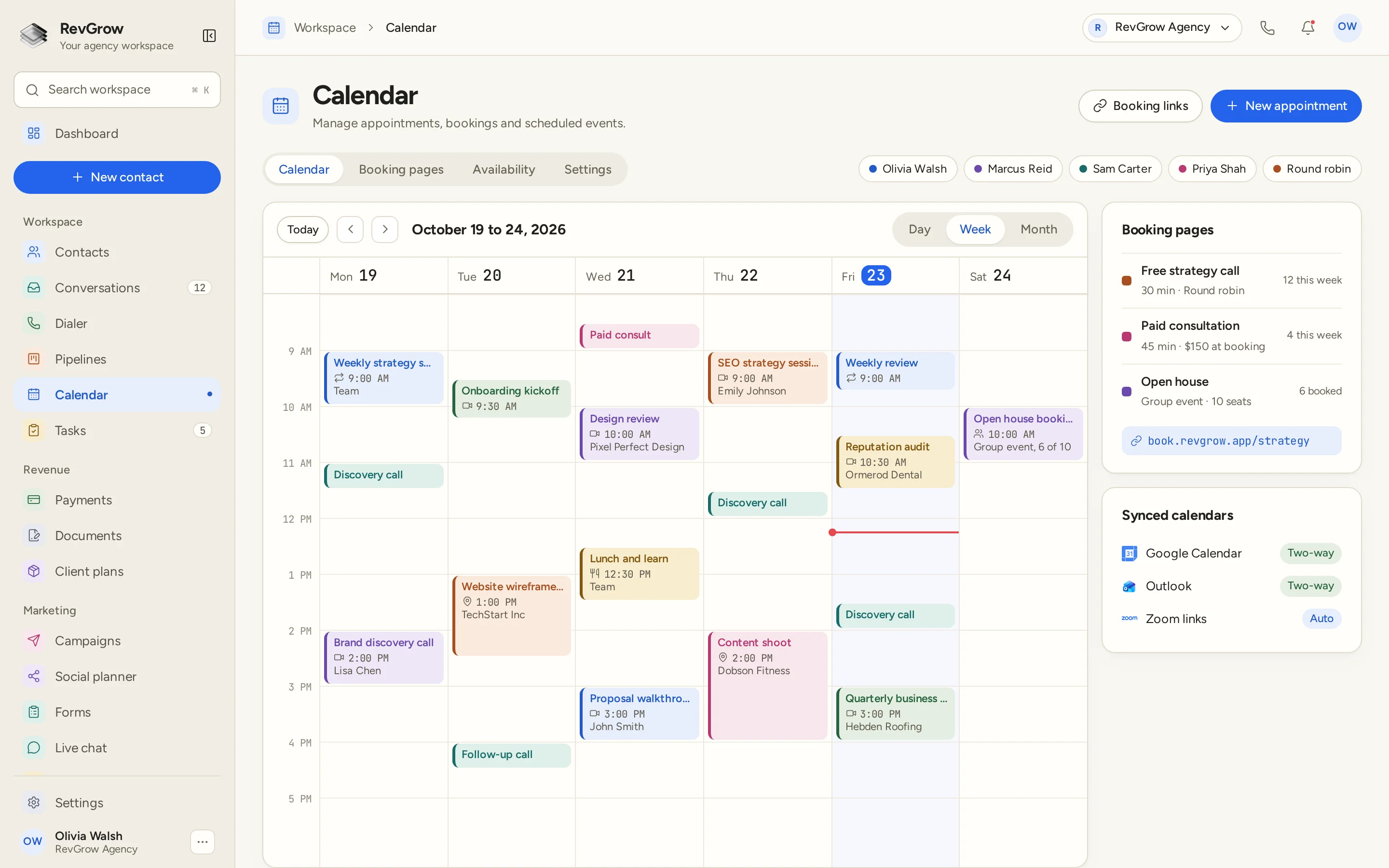
WHAT IT DOES
Choose the calendar type that fits the meeting. Book one person, share appointments across a team with round robin, bring hosts together with a collective calendar, or offer places at a group event.
Give people a booking page under your domain. Keep different meeting types on their own pages, then share the link for the call or event they need to book.
Connect Google Calendar or Outlook with two-way sync. Keep your external calendar and RevGrow connected while the team manages appointments in the CRM.
Add Zoom links automatically for meetings that need a video call. The calendar, the appointment and the link stay part of the same booking setup.
Collect payment when someone books a consultation or other paid appointment. Set up the booking page for that meeting type so scheduling and payment belong to the same process.
Set the hours you want to offer on each day, with time zones included in the availability setup. The booking page uses the schedule you choose for that calendar.
Send booking confirmations and reminders, and give people a reschedule link when plans change. Keep those messages connected to the appointment being booked.
Keep the appointment linked to the person who booked it. Use workflows around the booking so the team can carry the next step forward with the contact in context.
Use the booking API when an AI assistant needs to work with scheduling. Connect that booking flow to RevGrow rather than keeping a separate appointment process outside the CRM.
A CLOSER LOOK
Color-coded appointments sit across the week, with time labels down the side. Team calendar chips and Round robin sit above the grid, while Day, Week and Month offer different views of the schedule.
Appointment blocks show the meeting name, time and the person or company involved where applicable. Video, location, recurring and group markers distinguish the types of events in this sample.
The Booking pages panel lists a strategy call, a consultation and an open house. Meeting length, round robin and group capacity sit beside the page details, with a booking link below.
The Synced calendars panel shows Google Calendar and Outlook marked Two-way, with Zoom links set to Auto. Booking pages, Availability and Settings are tabs beside the calendar view.
HOW IT WORKS
Connect Google Calendar or Outlook for two-way sync, and set up automatic Zoom links when your meetings use video.
Pick a personal, round robin, collective or group event calendar. Set per-day availability and time zones for the meeting type the page will offer.
Put the booking page on your domain and share its link. For paid appointments, configure payment at booking as part of that page.
Review the appointment in the calendar and on its contact. Use booking messages, reminders, reschedule links and workflows to handle the work around the meeting.
FOR AGENCIES
Calendars and booking is one module in the CRM you white-label. Each client account has its own contacts and booking setup. You set the calendar types, the availability and the brand.
Appointments, contacts and booking setups stay inside that client account. One client's schedule stays separate from the next client's work.
Use a personal calendar for one host, round robin for a shared queue, collective for several hosts, or group events when people book places together.
Logo, colors, fonts and domains are yours. Clients manage calendars inside your platform, and booking pages use your domain.
Calendars and booking ships with the other modules. The calendar, contacts and workflows work together inside the same platform.
Already booking meetings in another CRM? Free migration covers booking setups and upcoming meetings, along with contacts, workflows and the rest. Email hamid@revgrow.app with the tool you use today. Keep the old tool running until you are ready.
The appointment stays connected. The brand stays yours.
THE REST OF THE PLATFORM
One database for every client, with custom fields, tags, smart lists and clean CSV import and export.
Explore ↗Visual builder with triggers, branches, waits, webhooks and AI steps.
Explore ↗Multi-step forms with conditional logic that turn every submission into a contact.
Explore ↗FAQ
There are four types: personal, round robin, collective and group event. Use personal for one host, round robin to share bookings across a team, collective for meetings with several hosts, and group events when attendees book places at the same event.
Yes. Booking pages run on your domain. Create pages for the meeting types you offer, then share the appropriate booking link with the person who needs to schedule.
Yes. Both Google Calendar and Outlook support two-way sync. The calendar also offers automatic Zoom links for meetings that need a video call.
Yes. Availability is set per day, with time zones included in the setup. Choose the hours for the calendar and meeting type you want people to book.
Yes. Payment at booking is supported for paid appointments. Configure the booking page for the consultation or meeting type you want to offer so the payment sits within that booking process.
Yes. The booking flow supports appointment confirmations, reminders and reschedule links. Appointments also link to contacts and workflows, keeping the person and the follow-up connected to the meeting.
Yes. RevGrow includes a booking API for AI assistants. Use it to connect the assistant's scheduling flow to the calendars and booking setup in the CRM.
Yes. Calendars and booking is included with the other modules, under your name, logo, colors, fonts and domains. Each client account has its own booking setup. Free migration covers booking setups and upcoming meetings, along with contacts, workflows and the rest. Email hamid@revgrow.app with the tool you use today, and keep your current CRM running until you are ready to switch.
YOUR NEXT CHAPTER STARTS HERE
Join the waitlist and lock in the $799 one-time founding price. Pay once, own the code, run every client under your brand.
Founding price for the first 50 only